Air Teams Walkthrough: Automations, Shared Cloud Environments, and Tasks
In a Nutshell
JetBrains Air Teams coordinates AI agents and developers in shared cloud environments with automations and tasks. Teams set up projects from GitHub repos, configure environments with VM sizing and secrets, then create recurring automations like code reviews and dependency upgrades that run on shared quota. Users can also trigger one-off cloud tasks from the web or IDE to handle specific work like test coverage.
These notes were generated by AI and may contain inaccuracies.
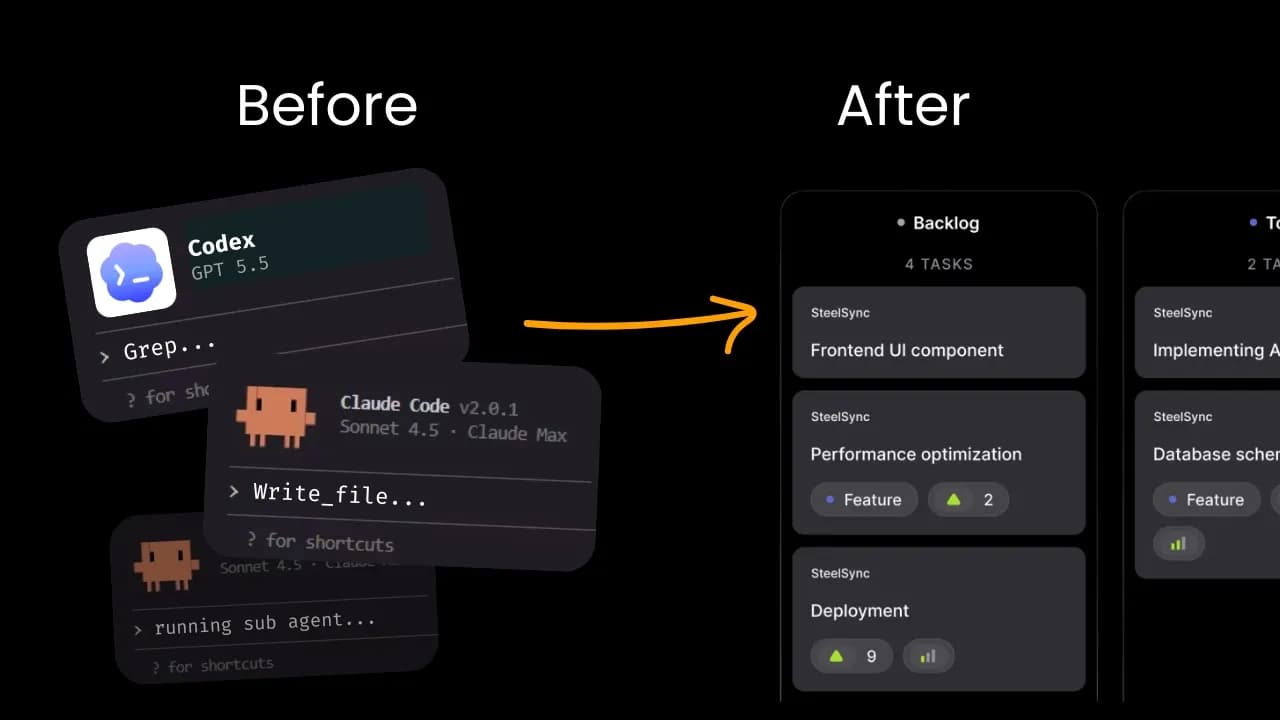
Does it feel like AI agents have increased individual productivity, while your team as a whole has been left behind? Hi, I'm Michelle Frost, AI advocate at JetBrains. Today, I'm going to be walking you through our brand new product, Air Teams. Air Teams is a new way to coordinate and automate work across developers, agents, and environments, helping your whole team, human and AI, to stay in sync. To get started with JetBrains Air, go to jetbrains.com/air.
Next, select Try Air, which will drop you down to our various Air products. Select Air Teams, which will bring you to our onboarding page. Let's begin with onboarding to Air Teams. First, we'll press the Get Started button, and I'm now going to select my organization. To connect my repository, I'm going to select GitHub, and then authorize JetBrains Air into my application. Next, we need to set up a project. A project is a shared workspace for your team to collaborate within. To get started, we need to select a repository. I will select a demo pet clinic repo, and the project name will auto-populate from it. From there, we can invite teammates. You can either search names directly from your org, or you can add groups. I'm going to add my AI developer advocacy team members.
Next, we can choose some easy automations that are already available to us. For example, we might want a code review automation, or another that resolves merge conflicts. We might want dependency maintenance, or perhaps document maintenance. I'm going ahead and select the last one, and choose Next. So now we have a basic project. Let's go ahead and edit the settings and see what else is available to us.
So we come up to these three dots on the right-hand side, and select Edit. We can adjust the name, add a description to the project. If we would like to add additional members, emails, or user groups, we can also do that in here. Something important to note is within this AI credit selection, and we also want to add run automations on shared quota. What this means is is that this project space will share quota together instead of running on individual personal quota. We're going to save these settings.
As your agents will be running in the cloud, now they need an environment through which to execute their tasks. Now let's look at your environment. To the right-hand side, if you select the three dots, you can edit your environment. From here, you can update the name should you choose. You'll see the project that it's attached to, the repository, and next is the VM size. We default to the medium size, but should you require a smaller VM or perhaps even a larger one, there are several options for you to choose from. For an internet access standpoint, we also default to trusted domains, but perhaps from a safety standpoint, you don't need internet access and you want to turn that off for the sandbox. You can also include additional domains that you're choosing and select the exposed ports. Should your environment require a startup script, you can add it to your repository at the following location.
Lastly, you can manage your environment variables by adding new variable, selecting the type, adding the name and value, and an optional description, and saving them here. Also, if your environment needs any secret providers, you can add the provider here with the type of connection and your authentication method with the role ID and secret ID, and update it for your environment. Next, you can also configure connectors for your project.
Connectors allow your project's agents to access external tools. Examples might include Confluence or Jira to access project management tools like tickets, or perhaps Figma to access things like your design files. Next, let's look at automations. So I'm going to add a new automation, and you'll notice two categories. The top category is organization automations. These are provided to you from your org as templates.
For example, we have an Air selection that's a PR code review. If I look at this, I have the instructions for the automation prompt. We have which triggers that will start the automation run, and then the connectors that the team will use for the project. In this case, we use Slack as well as YouTrack. We'll look at this more thoroughly in a little bit. We also have a selection of automations provided to us by Air. For example, perhaps I'd like to select dependency upgrade.
First, I need to select the repository within my environment. Now the template provides me with prompt instructions. If I want to, I can go ahead and select into this box and update them as I choose. I can also adjust the agent, as well as the selected model. From there, I need to decide what triggers this automation. For example, perhaps I want to trigger anytime a pull request has been opened, or maybe I want also when a review request has been made. GitHub has automatically been added as a connector, but I can also add other connectors as well. If I want to add a notification, I can configure a webhook. So I'm going to go ahead and create this automation, and there it is. Let's take a look at this project in a more realistic setting.
So now we're in the project with ten of my team members, eight automations that have actually been running. Let's go ahead and look at the code review automation. We have the instructions. They're running on Opus 5. We have multiple triggers and connectors and several runs. For example, in this PR, we wanted to reject pet visits dated before the birth, and we can go ahead and actually open the PR in GitHub.
I can go ahead and see where JetBrains Air automation reviewed the PR, what the suggestions were, and at the end, if it ultimately approved the PR changes. Back in Air Teams, I do have the full summary of the automation, what the findings were, as well as the full actions taken on the PR. In addition to inspecting the individual runs in the automation, I can look at the activity for each runs to see how many happened in the last seven days. In the left window pane, if I want to go over to the automations tab, you'll notice that I have project automations, but I also have personal. From here, I can also create a new automation to trigger a cloud run against my personal quota instead of the team.
So again, I follow the same pattern. I select my repository. I provide the automation some instructions, choose an agent and a model, give it triggers, connectors, a notification if I choose, and I go ahead and create the automation. Perhaps you don't require a recurring automation, but you just want to trigger a one-off cloud agent run. For this, we can use a task. In this example, I'm going to use the same project, and on main, I might want to say create test coverage for my latest PR, and I'll send that off to the cloud.
So it's starting in my left window pane, and I can go ahead and click into it and see that it's initializing the cloud environment. I can asynchronously run multiple parallel tasks and also steer cloud tasks that were initiated from my IDE. This is simply the web surface for monitoring those tasks. And the task I kicked off earlier has completed. I can scroll down and see the results and the finished changes. So we've prepared a working environment. We've shared it with our team. We've kicked off recurring automations as well as cloud tasks, which are accessible via both Air Teams web and your favorite IDE. Also, we have Air Teams mobile coming soon. Try Air Teams with your organization and stay tuned for more features coming soon. Visit jetbrains.com/air to get started.
Keep JetBrains in your library
Save the videos and channels worth coming back to, and find them again in one place.