JetBrains Air in IDEs – From Installation to Verified Agent Task in Two Minutes
In a Nutshell
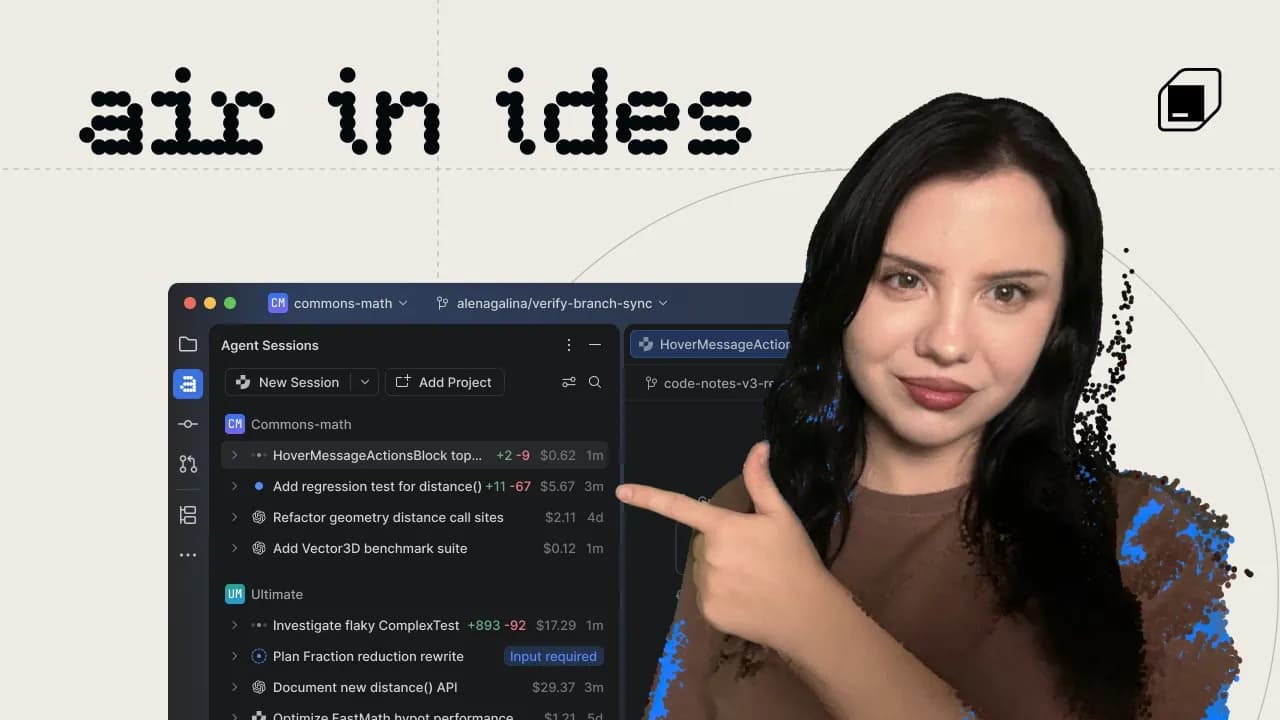
JetBrains Air is a new IDE plugin that lets you run any AI agent (free or paid) directly inside your existing JetBrains environment. Start tasks, attach context, and let the agent work while you monitor progress and intervene when needed. When finished, use the IDE's native tools to review, test, and accept or reject changes.
These notes were generated by AI and may contain inaccuracies.
Air works within the JetBrains IDE environment that you are already using. Install the add-on and you'll find the new Air Tools window ready to use. Air is a new tool window for the agents and subscriptions you already use. Through it, tasks begin, you see what is happening, and you review changes.
Air is not restricted to a single agent or specific AI provider. Start with Juni Light for free or you can add another agent from the ACP registry. You can now also use Cloud Code in Air's Terminal interface and full-screen IDE window even with your existing Cloud subscription.
You can start a task and add the context that interests you. Attach a file or specify some codes and the agent will start working. There is no need to monitor every step. Air will show you what's going on and tell you when the agent needs your input. Answer him and he will continue working.
Now, this is where the development environment (IDE) proves its worth. When the agent is finished, you will have software-smart tools for navigating, restructuring, testing, and debugging. Keep what is true and reject what is not. If you are in the middle of editing a file, you can press the Control key twice to access your agent and start a new task.
This is your first task with Air, from installation to achieving a sure result. Next, try running two agents in parallel, or if you prefer to work without artificial intelligence on a project, you can simply turn it off. Start using Air in development environments (IDEs) today and install the plugin.
Keep JetBrains in your library
Save the videos and channels worth coming back to, and find them again in one place.